Target WCAG 2.2 at Level AA. That’s the current baseline every major regulation and procurement standard points to, and content built to 2.2 automatically satisfies WCAG 2.1 and 2.0 as well. The immediate next step isn’t a redesign. It’s an audit that combines automated scanning with manual keyboard and screen-reader testing, followed by a prioritized fix list and a QA workflow that catches regressions before they ship.
TL;DR:
- Most accessibility issues are identified through a combination of automated scans and manual keyboard or screen-reader testing, not automated tools alone.
- Building accessible components into your design system from the start reduces repetitive fixes and improves overall compliance.
- WCAG 2.2 introduces new criteria for focus visibility, drag-and-drop accessibility, cognitive support, and mobile usability, extending prior levels without replacing them.
- Achieving WCAG Level AA compliance involves detailed scope documentation, evaluation methods, and acknowledgment of known limitations rather than simple certification.
- Addressing common mistakes like insufficient alt text, broken focus order, low-contrast design, and ARIA overuse can significantly improve accessibility without complete redesigns.
Table of Contents
- What Is Website Accessibility WCAG and How Do the Versions Fit Together?
- What Are the Four WCAG Principles Developers Need to Know?
- What’s the Difference Between WCAG Levels A, AA, and AAA?
- What Changed in WCAG 2.2 and What Comes Next?
- How Do You Actually Implement WCAG Across a Project?
- How Should Teams Test for WCAG Compliance?
- What Are the Most Common WCAG Implementation Mistakes?
- Where Can You Learn More and Verify These Standards?
- Lessons From Accessibility Work
- Get Help Implementing WCAG 2.2 Across Your Website
- Sources
- FAQ
What Is Website Accessibility WCAG and How Do the Versions Fit Together?
Website accessibility under WCAG means building sites that people with disabilities can perceive, operate, and understand, regardless of the assistive technology they use. The guidelines themselves are deliberately technology-agnostic. They don’t tell you which framework to use or which JavaScript library is compliant. Instead, they describe outcomes: can a screen reader announce this button’s purpose, can a keyboard-only user reach every interactive element, can someone with low vision read your body text against its background.
The W3C Web Accessibility Initiative maintains the standard, and the version history matters more than most teams realize. WCAG 2.0 arrived first and set the four-principle structure still in use today. WCAG 2.1 extended it to better cover mobile interactions, low vision, and cognitive disabilities. WCAG 2.2 is the current recommended version, and it’s backward compatible. Any page conforming to 2.2 also conforms to 2.1 and 2.0, so there’s no reason to target an older version for new work.
The standard’s reach extends well past the W3C’s own documentation:
- ISO/IEC 40500 adopts WCAG 2.0 as an international standard, which is why procurement documents in government and enterprise contracts often cite it directly.
- EN 301 549 is the European accessibility standard for ICT products and services, and it incorporates WCAG success criteria as its core technical requirement.
- WCAG-EM (WCAG Evaluation Methodology) gives auditors a repeatable process for scoping and conducting formal conformance evaluations.
- ACT Rules Format (Accessibility Conformance Testing) standardizes how automated testing tools express and validate accessibility rules, which is why results from different scanners increasingly agree with each other.
Knowing this landscape matters when a client or legal team asks “are we WCAG compliant?” The honest answer requires specifying which version, which level, and which pages. WCAG compliance isn’t a single yes or no. It’s a scoped, documented claim.
What Are the Four WCAG Principles Developers Need to Know?
Every success criterion in WCAG falls under one of four principles, often abbreviated POUR: Perceivable, Operable, Understandable, Robust. Treat these as four separate audit lenses rather than abstract categories, and most implementation work gets a lot less confusing.
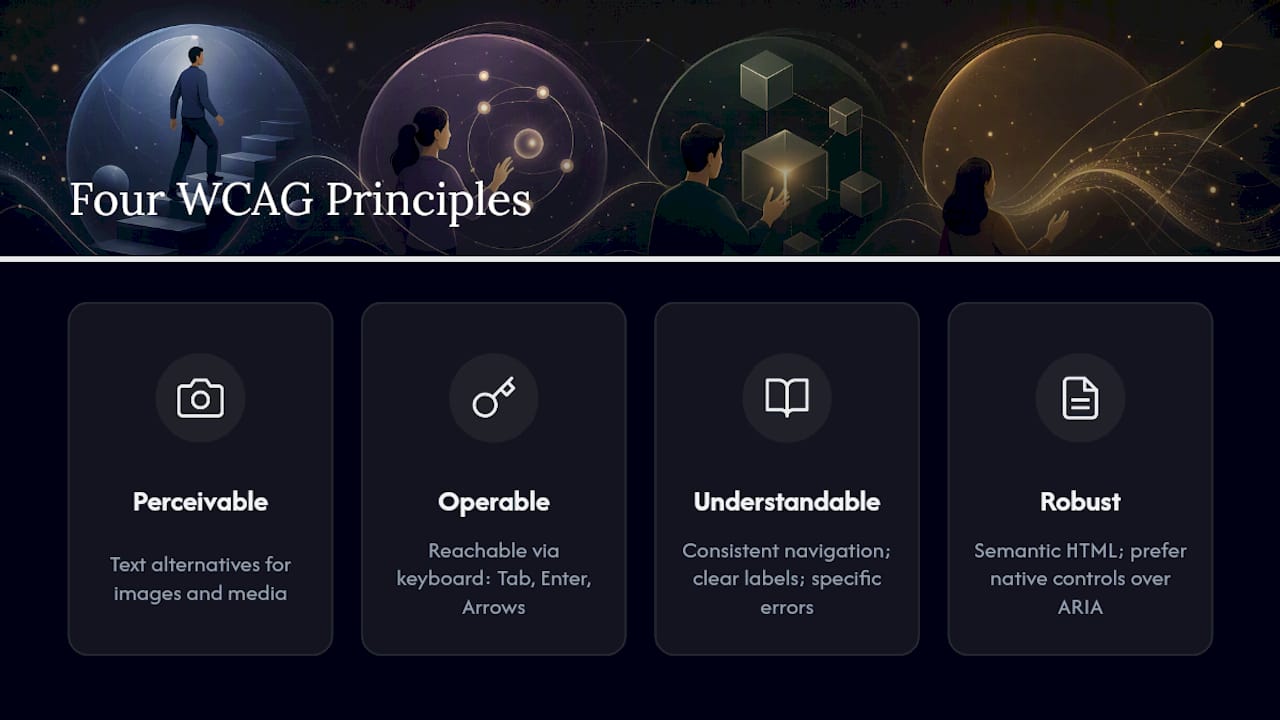
Perceivable means information can’t depend on a single sense. Every non-text element needs a text alternative, images convey their purpose through alt attributes, and video needs captions and audio description. Color contrast is a big piece of this: body text needs a 4.5:1 contrast ratio against its background at Level AA, large text needs 3:1. Don’t rely on color alone to convey meaning either. A form field marked invalid only by turning its border red fails for anyone with color blindness.

Operable covers interaction, and keyboard access is the backbone of this principle. Every interactive element, including custom dropdowns, modals, and date pickers, must be reachable and usable with Tab, Enter, and arrow keys alone. Focus order should follow a logical reading sequence, not just DOM order left unmanaged. Time limits need extensions or removal options, and nothing should flash more than three times per second.
Understandable is about predictability. Navigation patterns should stay consistent across pages, form labels should describe exactly what’s expected, and error messages need to say what went wrong and how to fix it, not just flag failure. A field that rejects a phone number with a generic “invalid input” fails Level A guidance on error identification.
Robust means your markup works correctly with current and future assistive technology. This is where semantic HTML earns its keep. A <button> element gets keyboard behavior, focus styling, and screen-reader announcement for free. A <div> styled to look like a button gets none of that unless you rebuild it manually with ARIA roles, tabindex, and keyup handlers. That’s more code, more edge cases, and more chances to get it wrong.
Pro Tip: Before reaching for an ARIA attribute, check whether a native HTML element already does the job. role="button" on a <div> is a patch for a problem that <button> solves natively, with better assistive-technology support and less code to maintain.
The WCAG quick reference maps every success criterion to specific sufficient techniques, which is far more useful during implementation than the normative spec language.
What’s the Difference Between WCAG Levels A, AA, and AAA?
The three conformance levels describe increasing thresholds of accessibility support, not increasing importance. Level A covers the baseline: without it, some users are completely blocked. Missing alt text on a critical image or a keyboard trap in a modal are Level A failures. Level AA adds criteria that address common, well-understood barriers: sufficient color contrast, resizable text, consistent navigation. Level AAA is the strictest tier, and it includes criteria the WCAG 2 Overview itself notes aren’t achievable for all content types, such as sign-language interpretation for every video.
Here’s what that looks like in practice:
| Level | Example requirement | Typical scope |
|---|---|---|
| A | Non-text content has a text alternative | Legal minimum for most jurisdictions |
| AA | Text contrast ratio of at least 4.5:1 | Common organizational and legal target |
| AAA | Contrast ratio of at least 4.5:1 | Rarely mandated site-wide; used selectively |
Level AA is where most organizations land, and for good reason. It resolves the barriers that affect the largest share of users without demanding design trade-offs that make content impractical for general audiences. Most legal frameworks reference AA rather than AAA precisely because AAA sometimes requires choices, like extremely high contrast or restricting language complexity, that conflict with brand or content goals.
When you publish a conformance claim, document three things: the exact scope (which pages, which functionality, which templates), the evaluation methods used (which tools, which manual tests, which assistive technologies), and known limitations, especially around third-party embeds and dynamic content you don’t fully control. A conformance statement that just says “WCAG AA compliant” without that context is closer to marketing copy than a documented claim. The term “accessibility-supported” matters here too. It means the technology you’re using (a particular ARIA pattern, a video format) is one that actual assistive technologies in common use can interpret, not just one that theoretically supports accessibility features.
What Changed in WCAG 2.2 and What Comes Next?
WCAG 2.2 adds new success criteria targeting cognitive accessibility, low vision, and mobile interaction, three areas the W3C identified as underserved by 2.1. The WCAG 2.2 specification confirms it extends 2.1 rather than replacing it, and everything that conformed to 2.1 still conforms to 2.2.
The additions worth knowing:
- Clearer requirements around focus visibility, so keyboard users can always tell where they are on a page, even with custom focus styling.
- Stronger guidance on drag-and-drop interactions, requiring a non-drag alternative for any function that depends on dragging.
- New criteria addressing consistent help mechanisms and reducing unnecessary authentication steps, both aimed at users with cognitive disabilities.
- Target size minimums for touch interfaces, which matters directly for mobile usability and motor-impairment accommodation.
WCAG 3 is still in draft form at the W3C and represents a much larger structural shift, moving away from pass/fail success criteria toward a scoring model. It’s not something to build against yet. Treat it as a direction to watch, not a standard to implement.
One practical wrinkle: contracts, RFPs, and older legal settlements sometimes cite WCAG 2.0 or 2.1 by name, written before 2.2 existed. Because WCAG 2.1 was published as a W3C Recommendation and 2.2 conformance covers it, building to 2.2 satisfies a contract that specifies an older version. Document that relationship explicitly in your conformance report so nobody has to guess whether you met the letter of an outdated reference.
How Do You Actually Implement WCAG Across a Project?
Accessibility work fails most often when it’s treated as a final QA pass instead of something built into every phase. Here’s a phase-based approach that spreads the work across a project timeline instead of dumping it all at the end.
- Audit first. Before writing new code, run an automated scan across existing templates and pair it with a manual pass on your five highest-traffic page types. This tells you where the real debt lives instead of guessing.
- Design with patterns, not one-offs. Build accessible states (focus rings, error messaging, form labels) into your design system once. A component library with accessible defaults prevents the same contrast mistake from shipping across forty different pages.
- Build with semantic HTML first. Reach for native elements before ARIA. Progressive enhancement, where core functionality works without JavaScript and enhancements layer on top, naturally produces more robust markup.
- Handle content separately from code. Alt text, video captions, and document structure (heading hierarchy, link text) are content decisions, not developer tasks. Give writers and editors a short accessibility checklist as part of your publishing workflow.
- QA against acceptance criteria, not vibes. Define what “AA-ready” means for each component type. A modal is AA-ready when it traps focus correctly, closes on
Escape, and returns focus to the triggering element. Write that down once and reuse it. - Monitor after launch. Accessibility regresses quietly. A new marketing widget or a redesigned footer can undo months of work in an afternoon if nobody’s watching.
Pro Tip: Add an automated accessibility check to your CI pipeline that fails the build on new contrast or missing-label violations. It won’t catch everything, but it stops the easy regressions from ever reaching production.
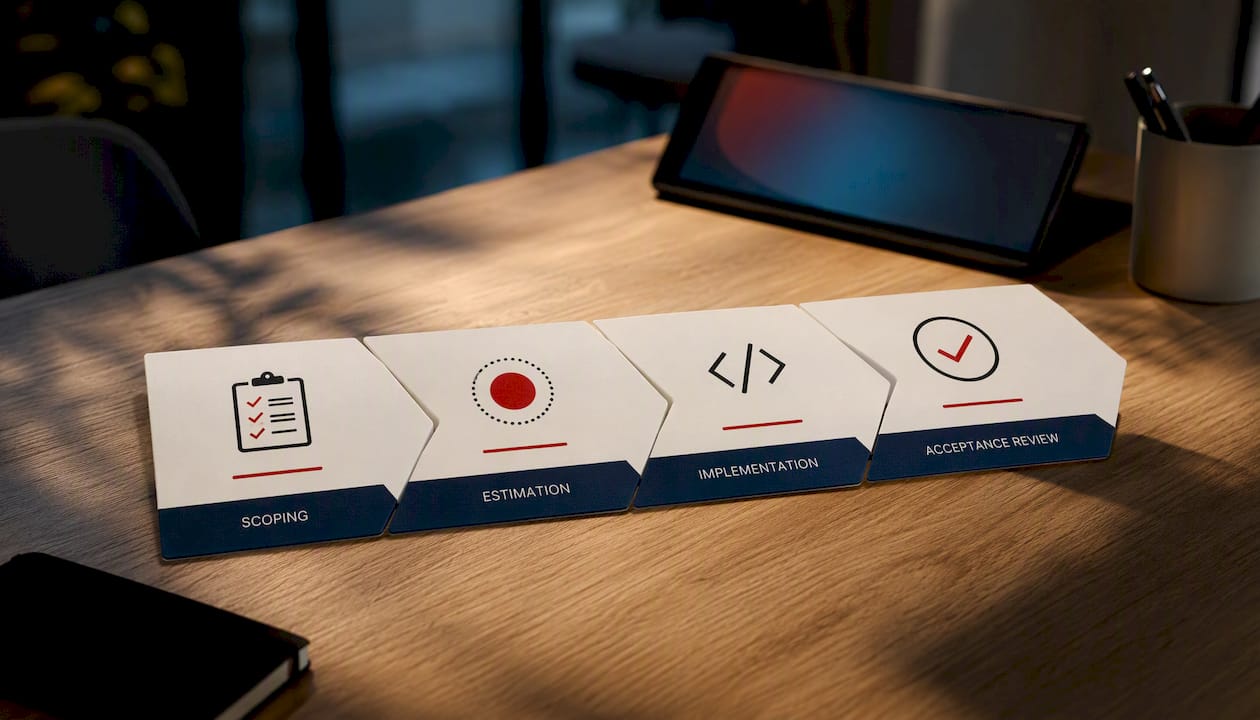
Integrating this into sprint planning is simpler than it sounds. Treat accessibility fixes as their own backlog items with the same estimation and acceptance criteria as any feature work, rather than folding them into “polish” tickets that get deprioritized. Design strategies that already emphasize strong UX foundations tend to absorb accessibility requirements more naturally, because good component architecture and accessible architecture overlap more than teams expect.
How Should Teams Test for WCAG Compliance?
Automated tools catch a real but limited slice of accessibility problems. Practitioner testing guidance puts that figure at roughly 30 to 40 percent of total issues, which means the majority of conformance work depends on manual testing.
Automated scanners reliably catch missing alt attributes, insufficient contrast ratios, and missing form labels. They cannot tell you whether your focus order makes sense, whether your screen-reader announcements are coherent, or whether a “skip to content” link actually skips to the right place.
Build your testing stack around that limitation rather than against it:
- Automated scanning for regressions and baseline coverage, run on every build so contrast and markup errors get caught before merge.
- Keyboard-only testing: unplug the mouse and try to complete your core user flows using only
Tab,Shift+Tab,Enter, and arrow keys. - Screen-reader testing with NVDA on Windows or VoiceOver on macOS and iOS, checking that announcements match visual context and that nothing is silently skipped.
- Low-vision and cognitive checks: zoom to 200%, test with a simulated color-blindness filter, and read your error messages as if you’d never seen the form before.
- Formal evaluation using WCAG-EM when you need a defensible, documented conformance claim for procurement or legal purposes, paired with ACT Rules to standardize how automated findings get reported.
When you turn automated scan results into tickets, resist the urge to file “500 contrast errors” as one item. Group by root cause instead. A single design token change might fix contrast across forty components at once, while a handful of one-off pages need individual attention.
What Are the Most Common WCAG Implementation Mistakes?
A handful of failures show up in nearly every audit reviewed, and most have fixes that don’t require a rebuild.
- Alt text that says nothing.
alt="image123.jpg"oralt="photo"fails the intent of the requirement even though the attribute technically exists. Fix it by writing alt text that describes the image’s function in context, and use emptyalt=""deliberately for purely decorative images so screen readers skip them. - Broken focus order. Custom layouts built with CSS positioning often scramble the visual order away from the DOM order, so keyboard users tab through content in a sequence that makes no sense. Fix the underlying DOM structure rather than patching it with
tabindexvalues greater than zero, which create their own maintenance problems. - Low-contrast design systems. Brand colors picked for aesthetics often fail the 4.5:1 ratio against white or light backgrounds. Fix this at the token level: adjust the core palette once in your design system rather than overriding contrast page by page.
- ARIA overuse. Adding
role,aria-label, andaria-liveattributes to elements that already have correct semantics can confuse assistive technology rather than help it. The rule of thumb: use ARIA only when no native HTML element provides the needed behavior.
Pro Tip: Run a “tab-through” test on every new page template before it ships. It takes two minutes and catches focus-order problems that automated tools routinely miss entirely.
Where Can You Learn More and Verify These Standards?
Everything in this article traces back to primary documentation, and bookmarking a short list saves time during real implementation work.
- WCAG 2.2 specification for the full normative text.
- WCAG 2 Overview for a plain-language summary of principles and levels.
- WCAG 2.1 for the prior version’s exact criteria and comparison notes.
- How to Meet WCAG (quickref) mapping every criterion to techniques.
- W3C WAI homepage for WCAG-EM, ACT Rules, and training materials.
A sensible learning path: start with the quickref, work through the techniques for criteria relevant to your stack, then practice manual testing before attempting a formal WCAG-EM evaluation.
Lessons From Accessibility Work
A common misconception is treating accessibility as a checkbox to clear once, right before launch. It’s a process. Design decisions made in month one create accessibility debt that shows up in month six, and no amount of end-stage remediation fixes that as cleanly as building it in from the start.
The second misconception is trusting a single automated scan as proof of compliance. Combined automated and manual testing, including real keyboard and screen-reader passes, catches what scanners alone miss. Clients who commission accessibility work should expect a scoped audit first, not a blanket guarantee, and should ask what methodology and assistive technologies were actually used to verify results.
— Ruthwik
Get Help Implementing WCAG 2.2 Across Your Website
Building WCAG 2.2 compliance into an existing site usually costs less time than teams expect when the work starts with a proper audit instead of guesswork. Courimo builds accessible web experiences as part of its website development work, combining automated scanning, manual keyboard and screen-reader testing, and design-system remediation so contrast, focus order, and semantic structure get fixed at the component level instead of page by page.

An engagement typically starts with an audit against Level AA, a prioritized fix list scoped by page and component, and an implementation plan that slots into your existing sprint cadence rather than requiring a separate accessibility project. For teams looking to scale that work without burning out an internal team, pairing accessible development with AI-assisted workflows for repetitive audit tasks can speed up the discovery phase considerably. If your site needs a fresh accessible build rather than remediation, that’s covered too, with the same testing rigor applied from the first component.
Request a website development quote to get a scoped estimate for an accessibility audit or a new accessible build.
Sources
- Home | Web Accessibility Initiative (WAI) | W3C
- NVDA accessibility testing guidance (practitioner note)
FAQ
What Are the WCAG Guidelines for Web Accessibility?
WCAG guidelines are organized under four principles, Perceivable, Operable, Understandable, and Robust, with specific success criteria under each rated at conformance levels A, AA, and AAA, as defined in the WCAG 2 Overview.
Does My Website Need to Be WCAG Compliant?
Legal requirements vary by jurisdiction and by the type of organization, but many accessibility laws and procurement standards, including ones referencing ISO/IEC 40500, use WCAG Level AA as the practical benchmark, so most businesses should treat it as the working target regardless of specific legal obligation.
What Are the New WCAG Guidelines for 2026?
WCAG 2.2 remains the current recommended version, with its added focus on cognitive, low-vision, and mobile accessibility; WCAG 3 is still in draft and not yet ready for implementation.
How Do I Make My Website WCAG Compliant?
Start with an audit combining automated scanning and manual testing, fix issues by priority starting with Level A failures, rebuild problem components using semantic HTML, and document your conformance scope and testing methods once fixes are verified.
How Much of WCAG Compliance Can Automated Tools Catch?
Automated tools typically catch roughly 30 to 40 percent of accessibility issues, which is why manual keyboard and screen-reader testing remains necessary for a reliable conformance claim.